




GE/GoodWe Inverter Wi-Fi guide
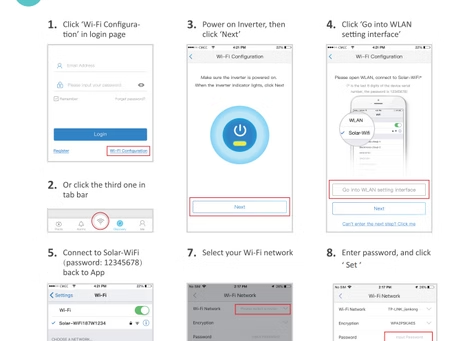
If your inverter seems 'offline' or disconnected from the SEMS portal, this guide will help you reconnect your GE Inverter Wi-Fi. Here are several steps to reconnect to the Wi-Fi network:
-
Click "Wi-Fi Configuration" in login page

2. Or click the third one in tab bar

3. Power on Inverter, then click "Next"

4. Click 'Go into WLAN setting interface'

5. Connect to Solar Wi-Fi (Password: 12345678) back to App

6. Click 'Next'

7. Select your Wi-Fi network
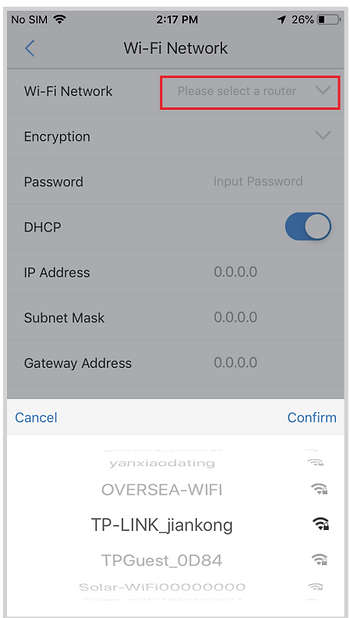
8. Enter password, and click 'Set'

9. Read the hint before click 'OK'

10. If it fails, you can 'Reconfigure' or view 'Configuration help'

11. Follow up the instructions and try again

Frequently Asked Questions (FAQ)
Cannot find Wi-Fi signal of Solar-WiFi
-
Make sure the inverter is powered on and the antenna is installed.
-
Move closer to the inverter.
-
Restart the inverter.
-
Do 'WiFi Reload' operation via the button on the front cover of the inverter.
Cannot connect to Solar-WiFi
-
Try password '12345678';
-
Restart the inverter;
-
Do 'WiFi Reload' operation, and try the password '12345678' again.
Cannot login to the webpage of Solar-WiFi
-
Try 'admin/admin' as the username and password;
-
Do 'WiFi Reload' operation, and try 'admin/admin' again;
-
Repeat step 2 again;
-
Confirm the website is http://10.10.100.253.
Cannot find the SSID of Wi-Fi router in site list
-
Move the Wi-Fi router closer to the inverter or use a Wi-Fi repeater device, restart Wi-Fi in the 'Management' page;
-
Connect to the Wi-Fi router and log into the settings webpage to check the channel it uses. Please make sure the channel is not greater than 13. Otherwise, modify it.
After configuration, the yellow LED blinks twice regularly within 1.6 sec.
-
Restart the inverter;
-
Connect to Solar-WiFi and log in again, check the 'SSID,' 'Security Mode,' 'Encryption Type,' and 'Pass Phrase' to make sure it matches that of the Wi-Fi router;
-
Connect to the Wi-Fi router and log in to check if the connection reaches the maximum amount or not, and check the channel it uses. Make sure the channel is not bigger than 13. Otherwise, modify it;
-
Restart the Wi-Fi router;
-
Move the Wi-Fi router closer to the inverter or use a Wi-Fi repeater device.
After configuration, the yellow LED blinks four times regularly within 1.6 sec.
-
Connect to the Wi-Fi router and visit the portal. Check if the portal is available or not;
-
Restart the Wi-Fi router and the inverter.
After configuration, the yellow LED is steady all the time, but the status of the PV station is still offline.
Please wait 10 minutes and check the status on the portal again.
If you still have trouble to connect to the Wi-Fi after following procedures above, you can contact GE/GoodWee Wi-Fi Tech Support on 02 510 40612 or email to service.au@goodwe.com.
Get Exclusive 15% Discount On Your First Purchase
142 Gipps Road, Smithfield, Sydney, 2164
+1800 788 638
support@electrifyingaustralia.com.au
© 2026 by Electrifying Australia Pty Ltd (ABN 16 665 322 967)


Electrifying Australia acknowledges Aboriginal and Torres Strait Islander peoples as the Traditional Custodians of the land on which we operate. We pay our respects to Aboriginal and Torres Strait Islander Elders past, present, and emerging.

.png)